Open Dental Insurance Verification: A Step-by-Step Guide
Use this Open Dental insurance verification guide to check eligibility, review benefits, resolve missing information, and prepare your team before each visit.
To verify dental insurance in Open Dental, review upcoming appointments, confirm the patient and subscriber details, request eligibility, and check the benefits relevant to the visit. Document the response and assign any unresolved questions before handing the record to the front desk.
This Open Dental insurance verification guide walks through that process, including the native tools and the parts that still need a person’s attention. The goal is a clear answer about what is known, what is missing, and who follows up.
Open Dental insurance verification guide: build your queue
Open Appointment Lists and select Ins Verify. The native Insurance Verification List helps staff organize and assign work. Filters include appointment timing, previous verification, carrier, assigned user, and status.
The row type identifies patient eligibility (Pat), insurance benefits (Ins), or both (Ins/Pat). Keep those checks separate: confirming the plan’s benefits does not establish that every family member is currently eligible.
Choose a look-ahead window that gives your team time to contact patients and payers. Reviewing the next few business days, with a separate pass through tomorrow’s unresolved work, is one practical starting point. Assign an owner and next action to each open item.
Confirm the patient, subscriber, and appointment details
Before sending a request, compare the record with the information the patient supplied. Check the patient’s name and date of birth, subscriber details, relationship to the subscriber, member ID, payer, group number when applicable, and intended service date.
When information conflicts, resolve the difference instead of silently choosing one source. A complete form can still contain an outdated plan. Ask whether coverage has changed since the last visit and identify who will update the record.
A digital patient intake workflow can organize information collected before the appointment. Receiving that information and confirming coverage are separate steps.
Request eligibility using the configured service
Open Dental’s Electronic Eligibility and Benefits documentation directs staff to Request in the Insurance Plan window. A supported eligibility service must be configured, and the carrier’s electronic ID must be correct. Use History to review earlier requests and responses.
Native automation is also available. Ins Batch Verify in Scheduled Processes requires the Open Dental Service and configured eligibility access; carriers must be marked trusted for real-time eligibility. The batch uses the verification list and setup criteria. Unresolved records remain for manual follow-up.
Before importing returned benefits, review network context, whether percentages describe the patient or insurer, and possible duplicates. Electronic delivery does not remove the need to interpret the response.
Use a visit-specific insurance verification checklist
Use this checklist as a handoff template. It describes information to review, not a promise that every payer or software tool returns every field.
| Check | What to record |
|---|---|
| Patient and plan | Patient, subscriber, payer, member ID, and service date checked. |
| Eligibility | Returned status, effective dates, and any conflict requiring clarification. |
| Deductible and maximum | Returned amounts and period, distinguishing individual from family and total from remaining. |
| Visit benefits | Relevant coverage, network context, and any unanswered procedure-specific questions. |
| Limitations | Frequency limits, waiting periods, or history that need confirmation for the visit. |
| Evidence and follow-up | Response source and time, unresolved questions, owner, and next action. |
Preserve the meaning of each value. An annual maximum is different from the amount remaining. An empty field does not mean zero, unlimited benefits, or no restriction. If the response is ambiguous, leave the question visible.
Resolve exceptions and document the handoff
A status should tell the next person what to do. Missing identifiers call for a data correction; incomplete benefits call for clarification. A failed request is not proof of inactive coverage.
- Missing information: name the field, who will obtain it, and when to repeat the check.
- Conflicting information: preserve the sources and reconcile the difference.
- Incomplete benefits: list the unanswered questions relevant to the appointment.
- Failed request: record the failure and the next appropriate verification channel.
For example, “Confirm the subscriber ID with the patient before repeating the request” gives a colleague a concrete task. “Insurance problem” makes them repeat the investigation.
The ADA recommends checking eligibility on the date of service and documenting payer interactions. It also explains that payer information can lag behind coverage changes. Include that final check in your routine and keep the earlier response’s date and source.
See the workflow in Insurance Copilot
PracticePilot AI’s Insurance Copilot brings appointment information, eligibility responses, available benefits, and follow-up work together. Currently available for Open Dental practices only. These screenshots come from the product demonstration and show simulated results, not live coverage checks.
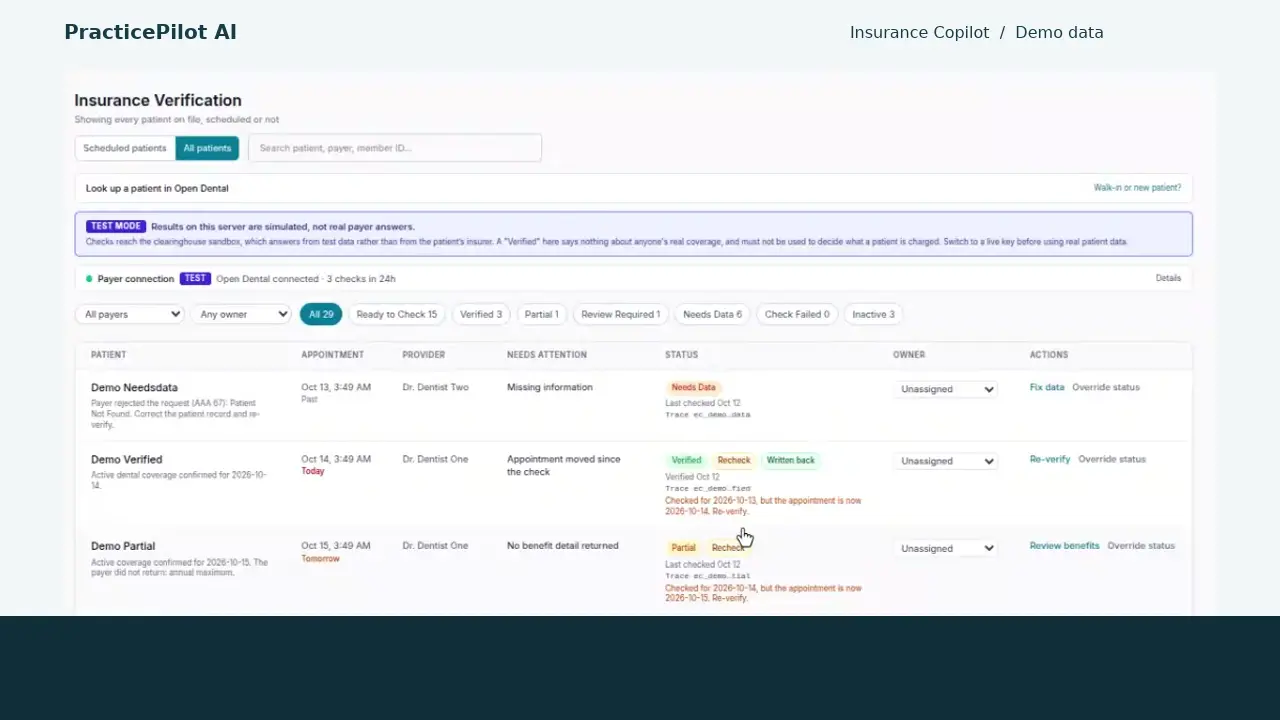
1. Start with the work queue
Review statuses and the reason each record needs attention. Prioritize unresolved appointments and make the next task visible.
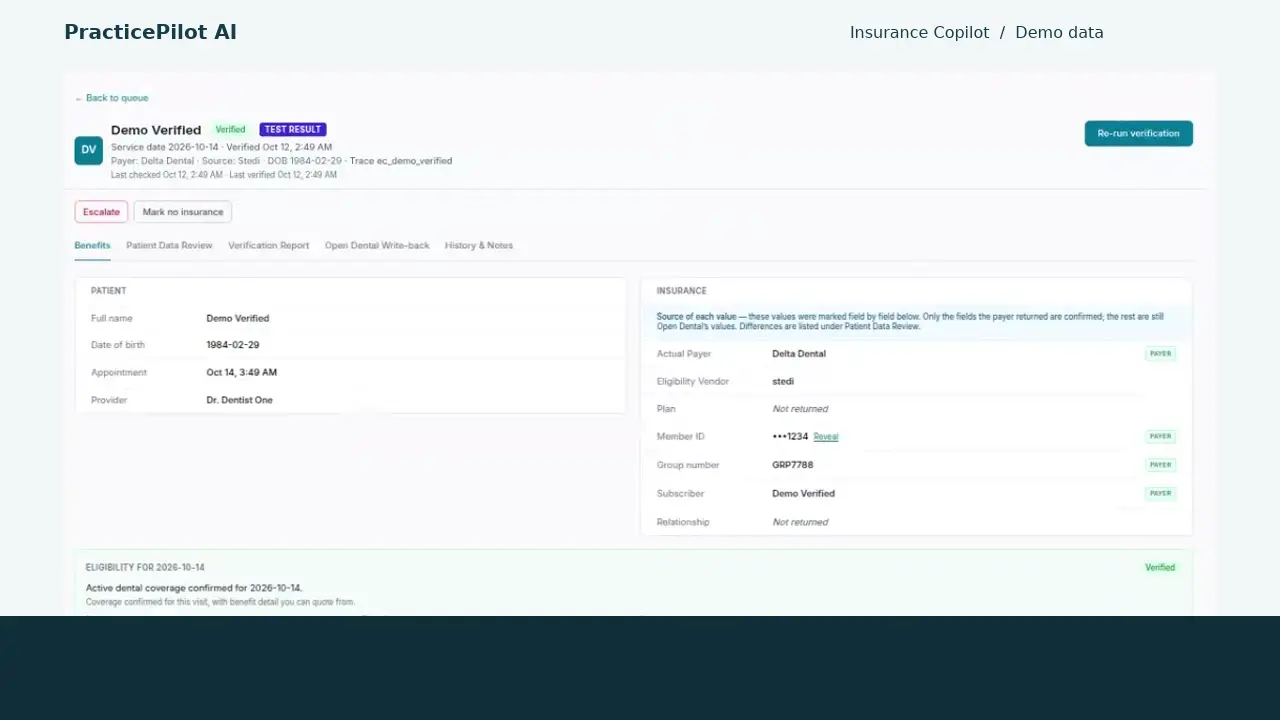
2. Read the returned information
Review the result in context instead of relying on a status badge alone. Keep the source of each field and the intended service date in view.
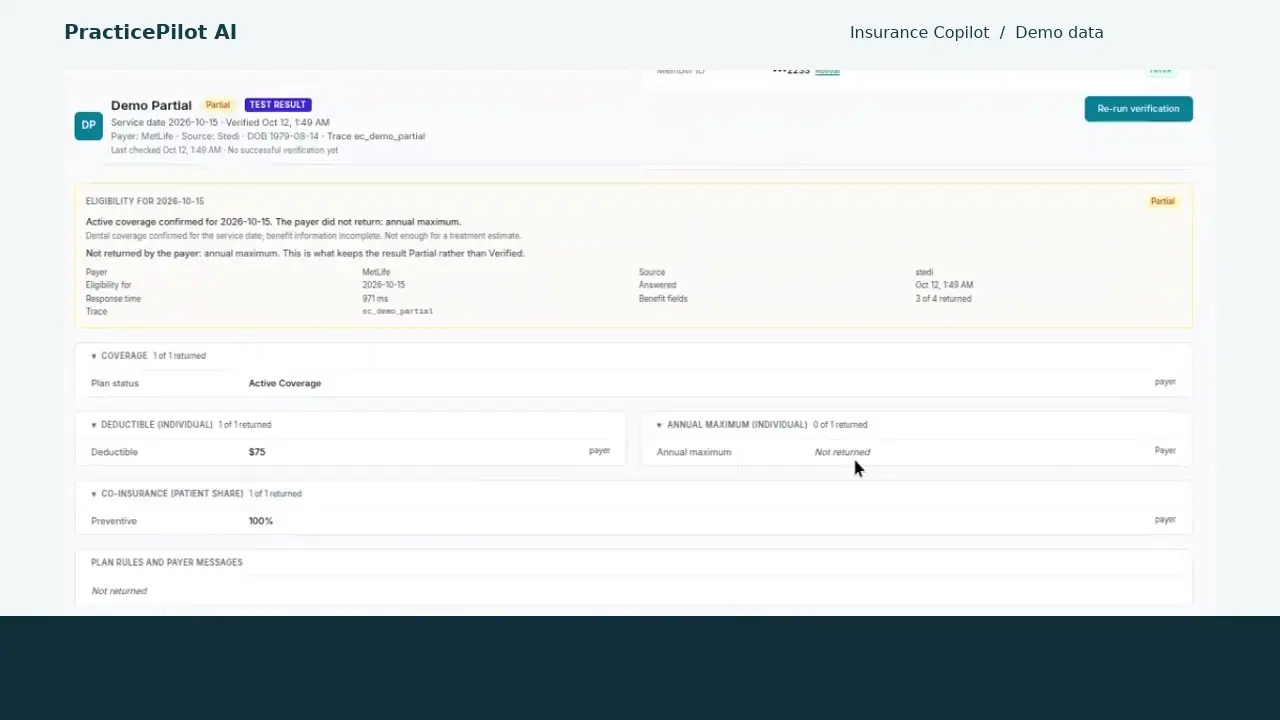
3. Keep missing benefits visible
In this example, coverage is active but the annual maximum was not returned. The record remains partial, giving staff a specific question to resolve before using that amount in an estimate.
Choose a routine case and an exception when evaluating software. Confirm how your team will review results, correct information, retain evidence, and finish follow-up. The useful outcome is a process another staff member can pick up without starting over.
Explore the supported Insurance Copilot features and current plans and pricing.
Frequently asked questions
Where is the insurance verification list in Open Dental?
Open Appointment Lists and select Ins Verify. The list helps your team assign and track eligibility and benefit checks; access depends on staff permissions and the practice's configuration.
Can Open Dental check eligibility automatically?
Open Dental supports Ins Batch Verify through Scheduled Processes, with a configured eligibility service, the Open Dental Service, and eligible carriers. Staff still need to review records that do not verify and information the response does not resolve.
Does active eligibility guarantee payment?
No. Active coverage does not establish coverage or payment for every planned service. Review the relevant benefits, limitations, and unresolved questions before discussing an estimate.
What should staff do when a benefit is not returned?
Keep it marked as unknown, record the question, and assign someone to confirm it through the payer's appropriate channel. Do not substitute zero or assume unlimited coverage.